

Blog
CarPlay or Android Auto Not Connecting? Six Things to Check First

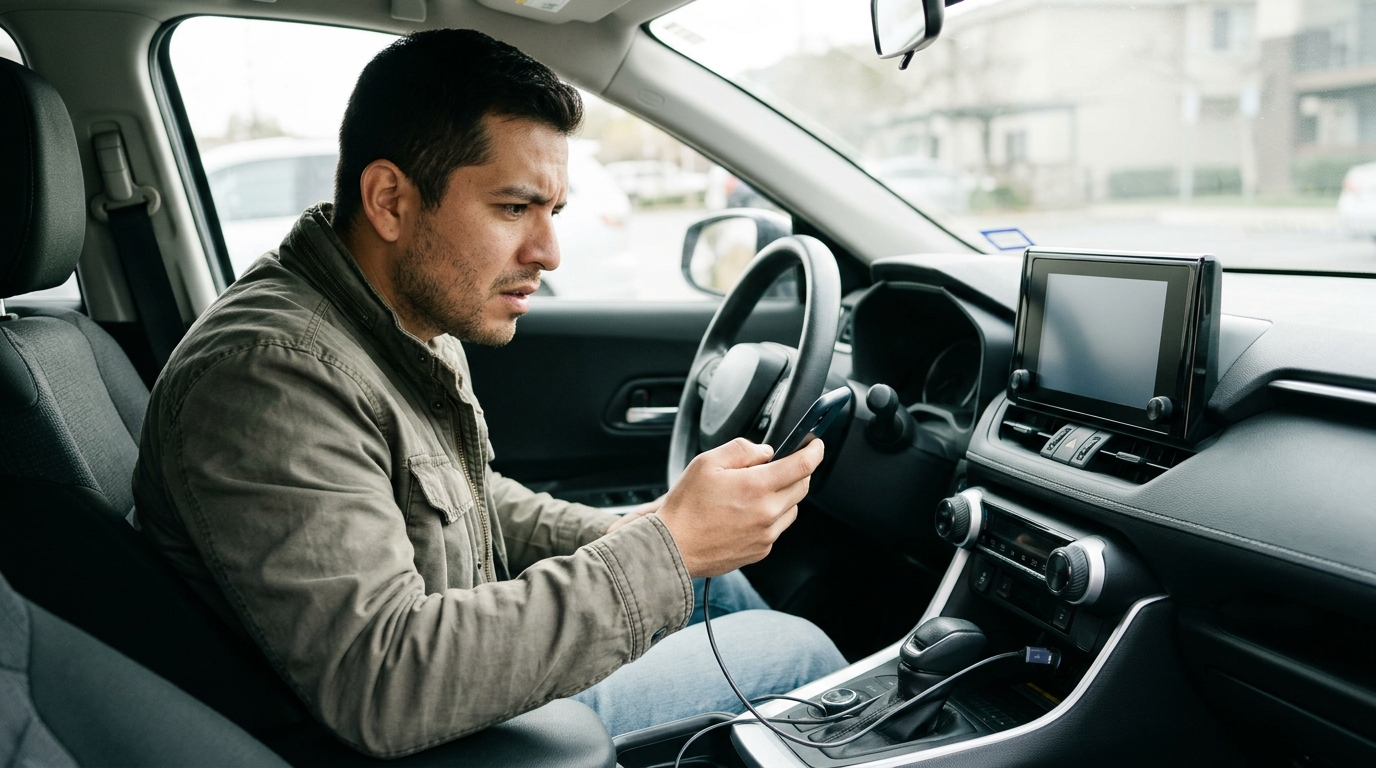
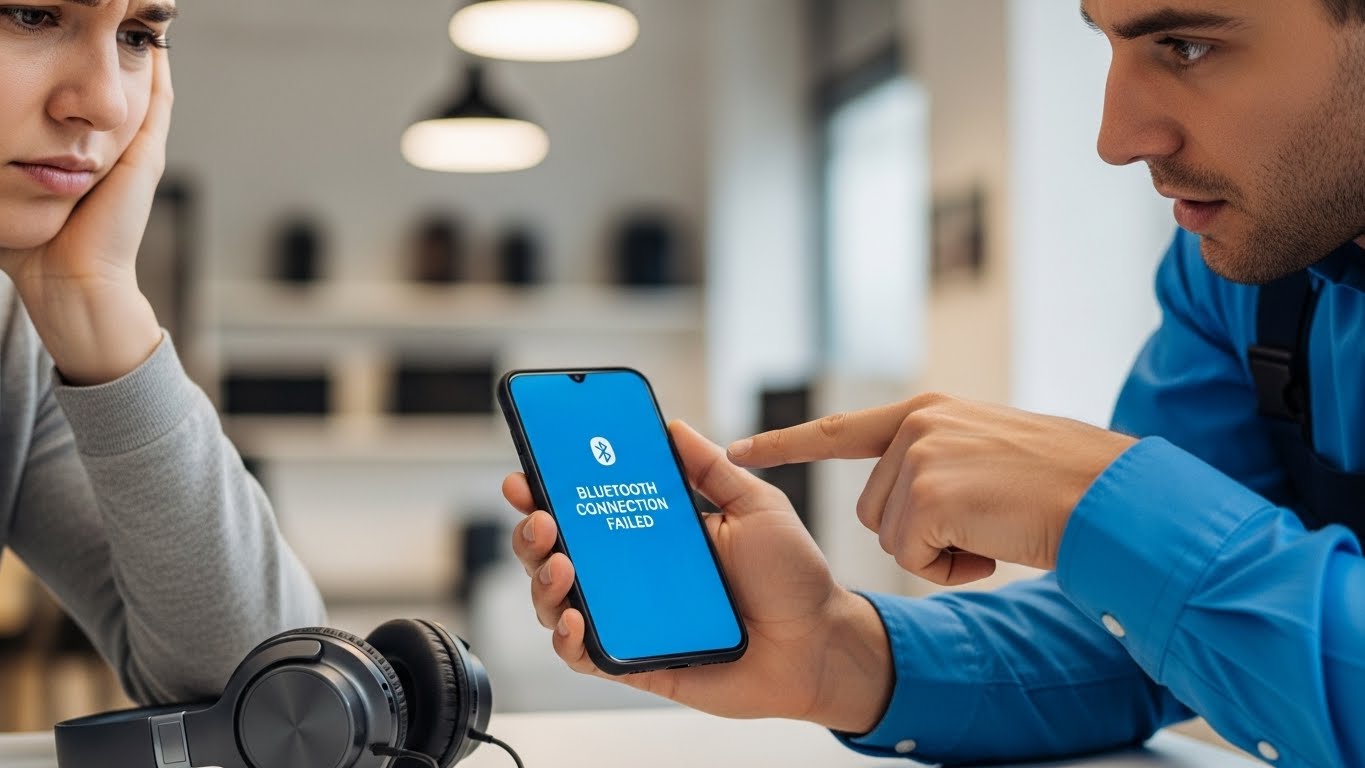
You get in the car, plug in your phone, and nothing appears on the screen. Or CarPlay connects, then drops two minutes into the drive. Or Android Auto worked every day for a year and then simply stopped after a software update.
This is one of those problems where the cause is almost never what people assume. Very few of these cases are a broken phone or a broken car. Most are one of six specific things, and five of them you can fix in your driveway.
Start Here: Wired or Wireless?
These are completely different systems with different failure modes, so establishing which one you are using is the first step.
Wired connects over the USB cable and carries data. Wireless CarPlay and Android Auto use Bluetooth to establish the connection and then hand off to Wi-Fi to carry the actual screen data. That second detail catches people out constantly, because it means wireless CarPlay needs both Bluetooth and Wi-Fi switched on, even though you are not joining a Wi-Fi network in any normal sense.
If you are on wireless and it stopped working, check that Wi-Fi is enabled on your phone before anything else. Turning Wi-Fi off to save data will break wireless CarPlay and Android Auto completely.
The Cable Is the Problem More Often Than Anything Else
For wired connections, this is the leading cause by a wide margin, and there are two distinct versions of it.
Charge-only cables
Many USB cables, especially cheap ones and the ones bundled with accessories, carry power but not data. They will charge your phone perfectly and will never, under any circumstances, run CarPlay or Android Auto. There is no way to tell by looking at it.
Test with the cable that came with your phone, or one you have successfully used to transfer files to a computer. If a known data-capable cable works, you found it.
A worn cable or a dirty port
A cable that charges fine can still have a damaged data line. Data pins fail before power pins do, because the data lines carry no current and corrode more readily.
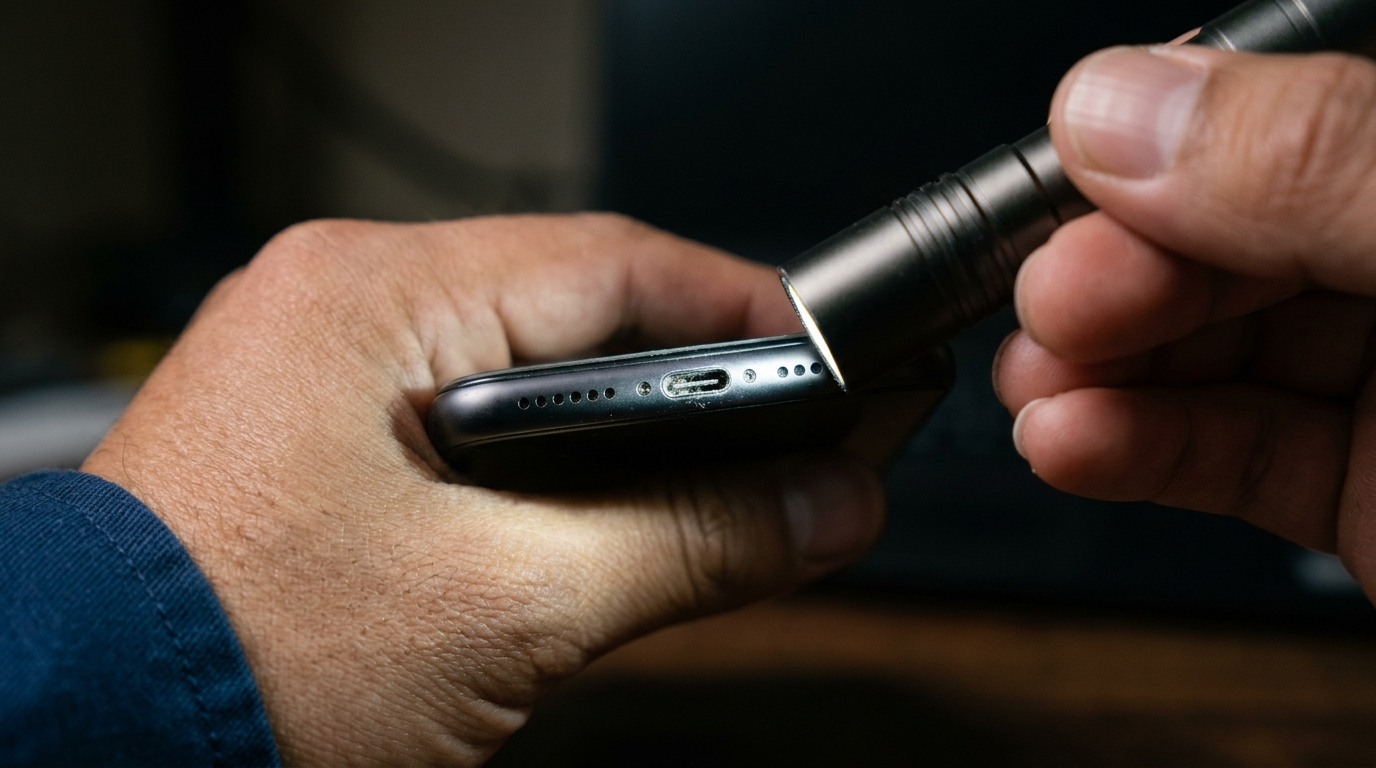
And on the phone side, a lint-packed port is enough to prevent a solid data connection even when charging still works, because the data contacts sit at a different depth than the power contacts. If the cable wiggles in the port, or the connection drops when you go over a bump, start with cleaning and checking the charging port.
Check the Car Side
Two things here, and the first one surprises people.
Not every USB port in your car carries data. Many vehicles have one data-capable port, usually marked with a phone or smartphone icon, and one or more charge-only ports marked with a battery or lightning symbol. Rear-seat and console ports are very frequently charge-only. If you have been using a different port than usual, try the marked one.
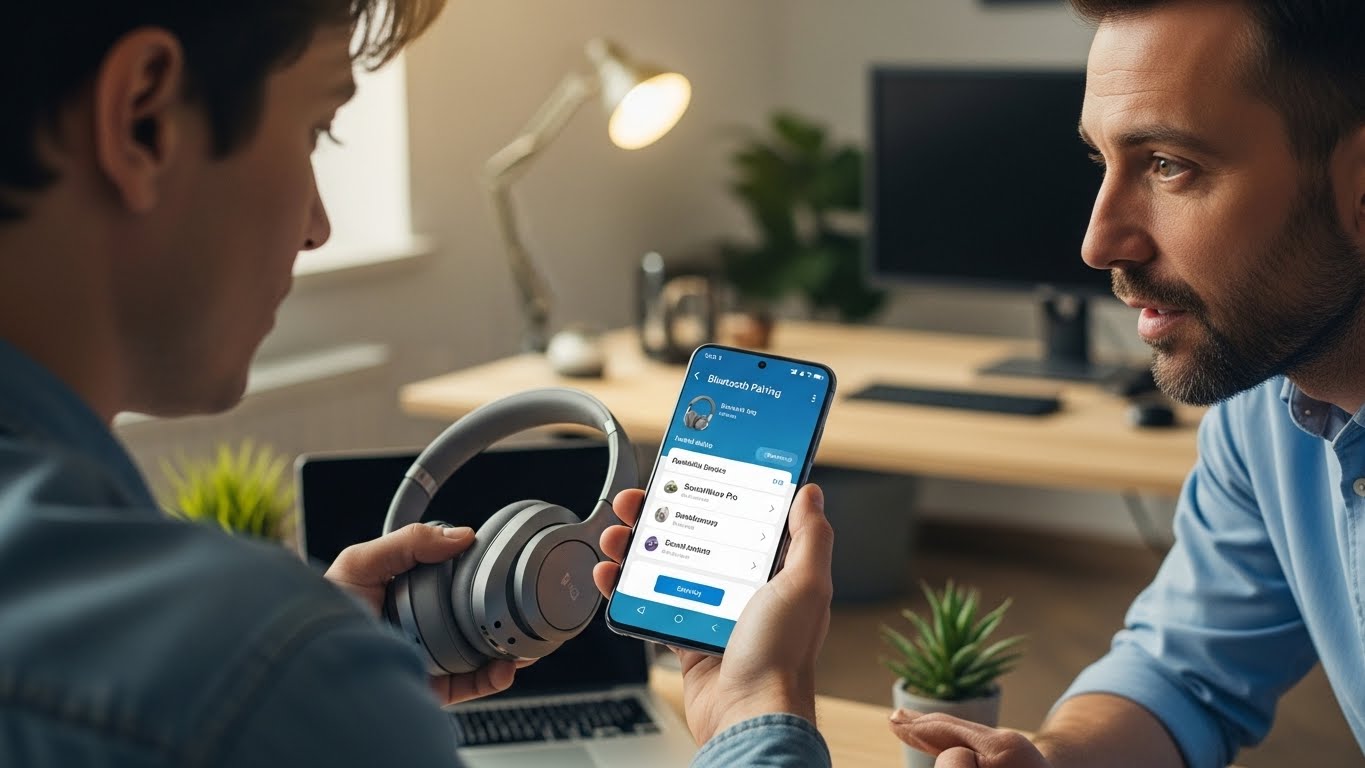
Your car may be remembering too many phones. Most head units store a limited number of paired devices, often five or six. Once full, new pairings fail or old ones behave erratically. Go into your car Bluetooth settings, delete every device you do not actively use, and pair fresh. This fixes a surprising share of wireless cases.
When a Software Update Broke It
If it worked yesterday and stopped today, and you updated your phone in between, you have your answer about the cause, if not yet the fix.
Major mobile OS releases have repeatedly disrupted CarPlay and Android Auto, and iOS 26 was no exception. iOS updates modify network and Bluetooth settings during installation, and some Pixel owners reported in-car software becoming unresponsive after Android updates. We covered the broader pattern in what to do when an iOS 26 update breaks your iPhone.
What actually fixes it:
- Update again. Point releases frequently patch exactly this. Settings, then General, then Software Update on iPhone; Settings, then System, then System update on Android.
- Forget the car and re-pair. Delete the car from your phone Bluetooth list and delete your phone from the car list. Both sides. Then pair from scratch.
- Reset network settings. On iPhone: Settings, General, Transfer or Reset iPhone, Reset, Reset Network Settings. This clears Wi-Fi passwords, so note them first. It resolves a large share of post-update connection failures.
- Check that CarPlay is still allowed. iOS can disable it under restrictions. Settings, Screen Time, Content and Privacy Restrictions, Allowed Apps, and confirm CarPlay is on. Updates have been known to flip this.
Android Auto Specifics
Android Auto has its own set of causes that do not apply to CarPlay.
- The app needs updating separately. On many phones Android Auto updates through the Play Store independently of the system. Check for an update there.
- Clear the cache. Settings, Apps, Android Auto, Storage and cache, Clear cache. Not Clear storage unless cache alone does not work, since that resets your preferences.
- Permissions get revoked. Android periodically removes permissions from apps you have not opened recently, and Android Auto is often caught by this. Check that it still has location, phone, contacts and microphone access.
- Battery optimisation. If Android Auto is being battery-optimised, the system can kill it mid-drive. Set it to unrestricted in battery settings.
- Developer settings. If you ever enabled unknown sources or changed Android Auto developer options, reset them to default.
CarPlay Specifics
- Siri must be enabled. CarPlay depends on it and will not start if Siri is fully disabled. Settings, then Siri.
- Check the car is not restricted on the phone. Settings, General, CarPlay, select your vehicle, and confirm it is set up rather than forgotten.
- Low Power Mode can interfere with wireless CarPlay, since it limits background networking.
- Try without a case. Thick or metal-backed cases occasionally attenuate the Wi-Fi link that wireless CarPlay depends on.
When It Is Genuinely a Hardware Problem
If you have worked through all of the above with a known-good data cable, a known data port, a fresh pairing and current software, a hardware fault becomes likely. The usual causes:
- Damaged data pins in the phone charging port. Power pins intact, data pins not. The phone charges normally and will never connect. This is the most common hardware cause and it is a straightforward port replacement.
- A failing Wi-Fi or Bluetooth antenna, which affects wireless CarPlay and Android Auto specifically. Often follows a drop. Also worth reading if your phone has Bluetooth problems more generally.
- Corrosion from past moisture exposure, which tends to take out data lines before power lines.
- A failed head unit or a loose USB harness in the car, which is a job for an auto electrician rather than a phone repair shop. The giveaway is that no phone works in that port, including a friend’s.
That last test is the one worth doing before you spend money anywhere: try a different phone in your car, and try your phone in a different car. Whichever one fails in both places is the one that needs attention.
Stop to Fix in San Antonio
If the diagnosis points at your phone rather than your car, bring it in. We test the port data lines specifically, not just whether it charges, so we can tell you whether the data pins are the problem before you replace anything. Free diagnostic, same-day on most port repairs. Here is how to pick a shop you can trust.
Bandera Road: 11851 Bandera Rd., Suite 104, San Antonio, TX 78023 — (210) 325-9913
Pleasanton: 1320 W Oaklawn Suite D, Pleasanton, TX 78064 — (210) 371-8328
Quick Recap
- Wireless CarPlay and Android Auto need Wi-Fi switched on, not just Bluetooth
- Charge-only cables never run CarPlay — test with a cable you have used for data transfer
- Not every USB port in your car carries data — look for the one marked with a phone icon
- Your car may be remembering too many phones — delete old pairings and start fresh
- After an OS update: re-pair both sides, then reset network settings
- Check CarPlay has not been disabled under Screen Time restrictions
- Android Auto: update it via the Play Store, clear cache, re-check permissions
- Charges but never connects? Damaged data pins in the port — a common and fixable repair
- Test another phone in your car and your phone in another car to isolate which side is at fault