



Blog
Samsung Galaxy S26 Ultra Screen Problems

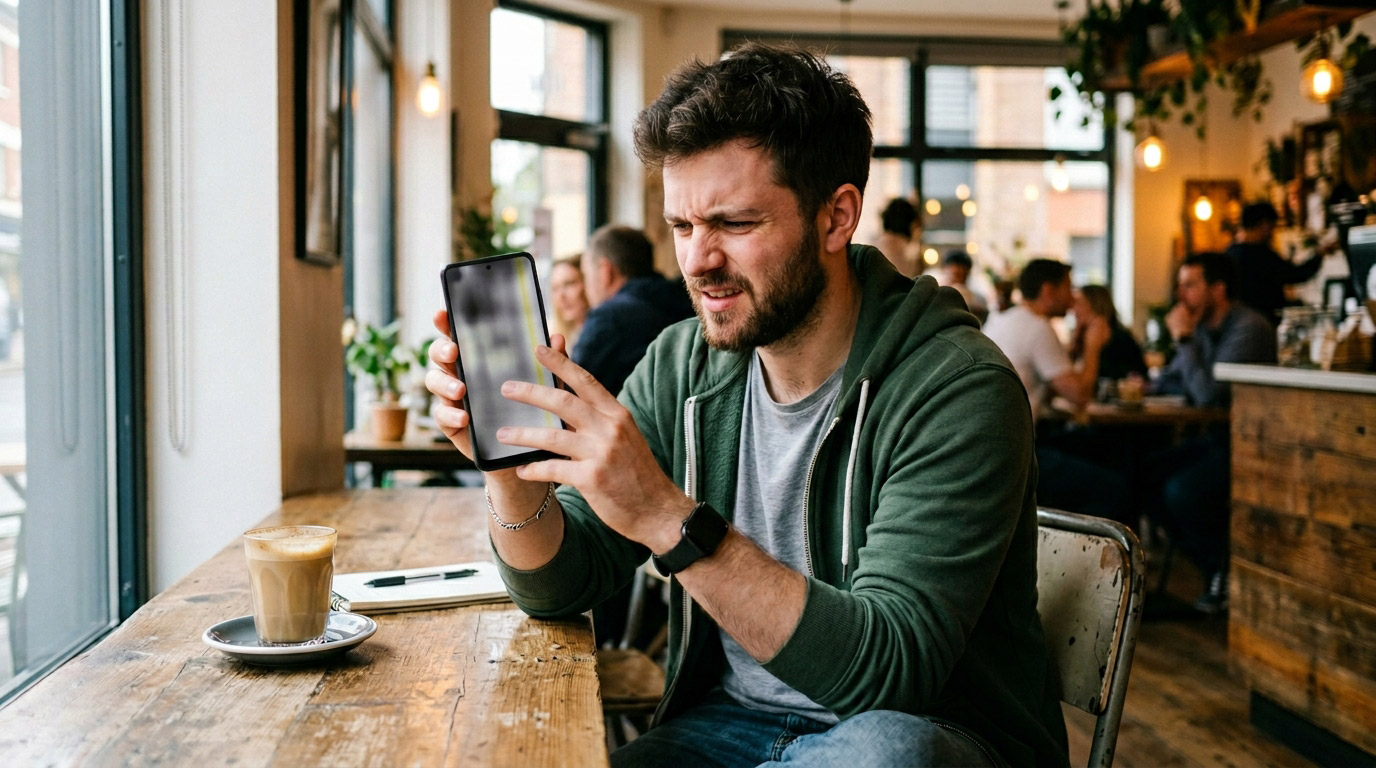
The Samsung Galaxy S26 Ultra launched in February 2026 as one of the most advanced smartphones ever made a 6.9-inch Dynamic AMOLED display, 120Hz adaptive refresh rate, and Samsung’s new Privacy Display feature.
But within weeks of launch, widespread display complaints started surfacing: fuzzy text, unexpected dimming, eye discomfort during normal use, and inconsistent brightness behavior.
If you’re experiencing S26 Ultra screen issues, you’re not alone and you’re facing a genuine decision: is this a software problem that Samsung will fix with an update, or is something physically wrong with your display that needs professional attention right now?
This guide breaks it down clearly.
What’s Actually Being Reported
The Samsung Galaxy S26 Ultra display controversy in early 2026 involves several distinct issues, and it’s important to separate them because they have different causes and different solutions.
Fuzzy or soft text: A notable number of S26 Ultra users reported that text across the display looked slightly blurry or soft — particularly in smaller font sizes. This was most noticeable in messaging apps and web browsing. Samsung confirmed they were investigating and pushed a display calibration update in April 2026.
Inconsistent brightness and dimming: The S26 Ultra’s adaptive brightness, combined with the new Privacy Display feature, created unexpected dimming behavior — the screen would drop noticeably in brightness in certain lighting conditions without clear reason.
Eye discomfort and visual fatigue: Some users reported headaches and eye strain during normal use, attributed to flicker behavior at low brightness levels — a known issue with high-refresh-rate OLED displays when the PWM (pulse width modulation) dimming frequency is too low.
Display lines or color banding: A smaller subset of users reported visible horizontal lines or uneven color distribution across the display — this is distinct from the software-related issues above and almost always indicates a hardware problem.
The Software Issues: What Samsung Has Already Fixed
Samsung’s April 2026 firmware update (One UI 8.1 patch) addressed several of the S26 Ultra display complaints directly:
- Display calibration adjustment for the fuzzy text issue
- Privacy Display brightness behavior correction
- Adaptive brightness algorithm refinement
If your S26 Ultra is running software from before April 2026 and you’re experiencing fuzzy text or unexpected dimming, update first before doing anything else.
How to update: Settings → Software Update → Download and Install.
After updating, recalibrate your display settings: Settings → Display → Screen Mode → set to “Vivid” or “Natural” and allow 24 hours for the phone to adapt to your usage environment.
The Privacy Display Feature: Turn It Off First
The S26 Ultra’s Privacy Display feature is designed to reduce side-angle visibility — useful in public — but it does this by selectively dimming pixels in ways that affect overall display uniformity. Many users experiencing dimming and brightness complaints have found that simply disabling Privacy Display resolves the issue entirely.
How to turn it off: Settings → Display → Privacy Display → Off (or set to “Off” rather than “Maximum privacy protection”).
This is the single most impactful setting change for S26 Ultra display complaints and should be the first thing you try.
PWM Flicker and Eye Strain: A Hardware Design Issue
This one is more complicated. OLED displays dim by flickering on and off at high speed — the dimmer the screen, the more noticeable the flicker. Samsung uses a specific PWM frequency on the S26 Ultra that some users’ eyes are sensitive to, particularly at medium and low brightness.
This is not something Samsung can fully fix with a software update — it’s a characteristic of the display panel’s dimming design. However, several settings adjustments reduce the perceptible flicker:
- Enable High Brightness Mode: Counterintuitively, using the display at higher brightness reduces the perception of PWM flicker. Settings → Display → Brightness → maintain above 50% when possible.
- Enable Flicker Reduction: Settings → Display → Flicker Reduction (available in One UI 8.1 and later). This switches to DC dimming at low brightness levels, reducing flicker at the cost of some color accuracy.
- Use Natural Screen Mode: Settings → Display → Screen Mode → Natural. This reduces the processing load on the display controller and can reduce flicker sensitivity.
If eye discomfort persists despite these adjustments, the issue is how your particular visual system responds to this display’s PWM frequency — not a defect that can be repaired.
When the Problem Is Physical Damage
All of the above applies to software-related and design-characteristic display issues. Physical damage is a different situation entirely.
Signs your S26 Ultra has hardware display damage:
- Visible cracks, even hairline fractures
- A specific area of the screen that doesn’t respond to touch or shows visual anomalies (lines, discoloration) in a fixed location
- Dark spots or spreading shadow areas — these indicate OLED panel damage beneath the glass
- Screen completely black or showing only partial content
- Issues that started immediately after a drop, even a minor one onto a hard surface
The S26 Ultra’s 6.9-inch edge-to-edge Dynamic AMOLED display is one of the largest and most exposed glass surfaces on any current smartphone. Despite Gorilla Glass Armor protection, cracked screens remain the most common physical damage we see on S26 series devices at Stop to Fix.
Important: Physical damage does not improve with software updates. If your display has hardware damage, waiting for a patch will not help — and in some cases (moisture entry through a crack), waiting makes the damage worse.
Repair vs. Wait — The Decision Framework
Use this to decide which path is right for your situation:
Wait for an update if:
- Fuzzy text, unexpected dimming, or brightness inconsistency
- Issues started from day one or after a specific software version
- No physical damage, no drop history
- Running software older than the April 2026 update
Repair now if:
- Visible crack or impact point on the display
- Fixed dead zone — an area that consistently doesn’t register touch
- Dark spots, lines, or color banding in a fixed location
- Screen went dark or partially dark after a drop
- Moisture may have entered through a crack
Get a diagnostic if:
- Issues started after a drop but no visible crack is present
- Display problems are intermittent and you can’t tell if they’re software or hardware
- You’ve updated and the problem persists but you’re not sure of the cause
At Stop to Fix, a diagnostic is free and takes 15–20 minutes. We’ll tell you definitively whether your screen issue is software behavior or physical damage.
What Stop to Fix Does for S26 Ultra Repairs
We work on Samsung Galaxy S26 series devices at both our San Antonio locations. For S26 Ultra screen repairs specifically:
- Free diagnostic to confirm whether the issue is hardware or software
- Quality Dynamic AMOLED display assemblies — we don’t cut corners on S26 Ultra parts
- S Pen compatibility verified after screen replacement
- Full touch and display function test before returning the device
- Workmanship warranty on every repair
Most S26 Ultra screen repairs are completed within the same business day when parts are available. Call ahead to confirm parts stock for your specific model.
Stop to Fix — Samsung Galaxy S26 Ultra Repair in San Antonio
📍 Bandera Road: Santikos Silverado Shopping Center, 11851 Bandera Rd., Suite 104, San Antonio, TX 78023
📍 Pleasanton: 1320 W Oaklawn Suite D, Pleasanton, TX 78064
📞 Bandera: (210) 325-9913
📞 Pleasanton: (210) 371-8328
🌐 stoptofix.com/get-instant-estimate