



Blog
Phone Speaker Not Working

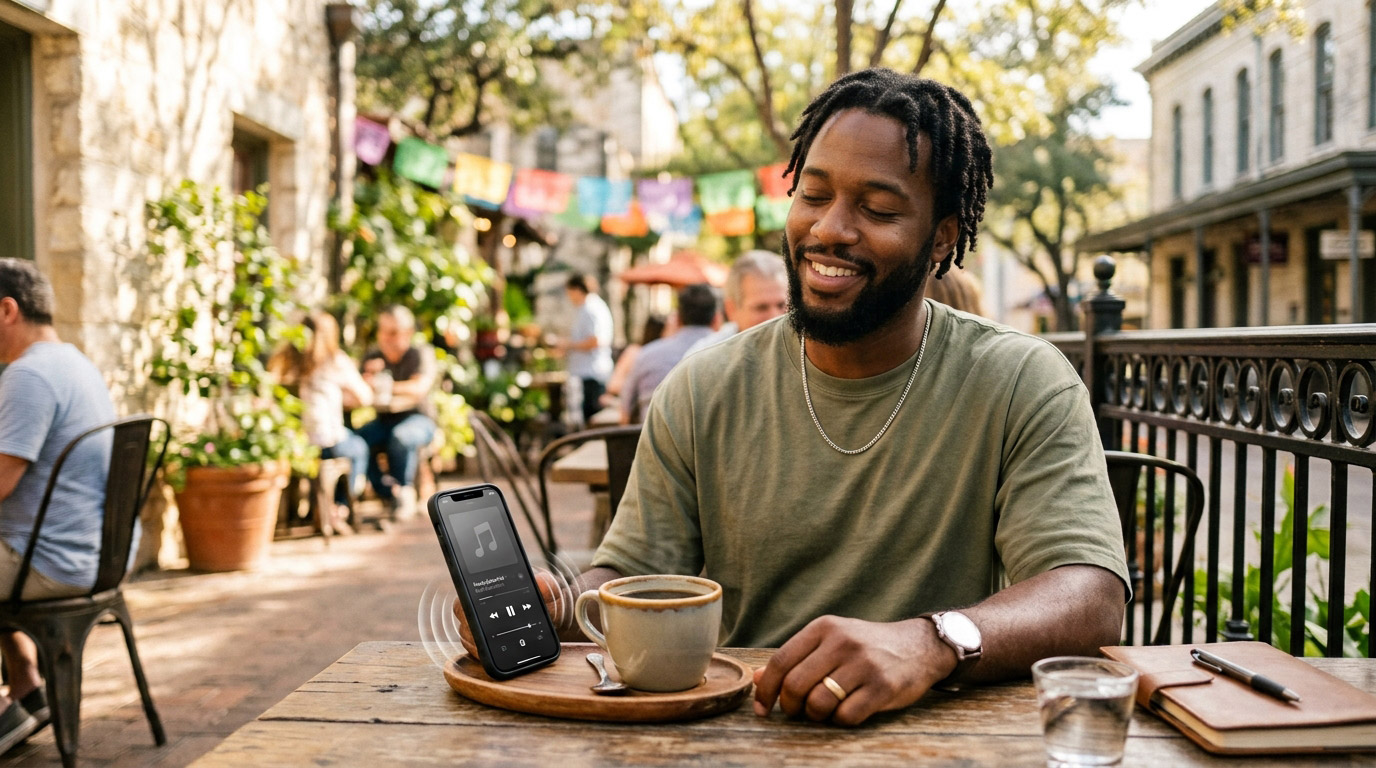
You’re trying to play music, take a call on speaker, or watch a video and the sound is either completely gone or so muffled it’s barely usable. Phone speaker problems are one of the most common repair issues we see, and they have a wider range of causes than most people realize.
The good news: a large percentage of speaker problems are fixable without replacing any hardware. Here’s how to diagnose yours and what to do about it.
Step 1: Confirm It’s Actually the Speaker
Before assuming hardware damage, rule out these software and settings issues first.
Check volume and mute: This sounds obvious, but silent mode, Do Not Disturb, and volume settings interact in ways that can result in no speaker output even at maximum volume. On iPhone, check the physical Ring/Silent switch on the side. On Android, press volume up during media playback (not during a call, which adjusts call volume separately).
Check Bluetooth: If your phone is connected to a Bluetooth speaker, headphones, or car audio system, audio output routes there instead of the phone speaker. Go to Settings → Bluetooth and disconnect all devices, then test.
Check headphone mode: Debris in the headphone jack (on older phones) or the Lightning/USB-C port can cause the phone to think headphones are plugged in routing audio away from the speaker. Try gently cleaning the port.
Test with a specific app: If the speaker works in some apps but not others, it’s a software/permissions issue, not hardware. Check that the app has audio permissions: Settings → Privacy → Microphone (for calls) and ensure volume is up within the app itself.
Restart the phone: Audio output can get stuck in a software state after updates or after certain apps crash. A full restart clears this in many cases.
Step 2: The Debris Problem – Most Common Cause
The single most common cause of muffled or absent phone speaker output is debris. Speaker grills accumulate lint, dust, pocket fabric, and other material that physically blocks sound from escaping.
This is especially common with the bottom-firing speakers on iPhones and most Android phones they sit directly against pocket lining and bag fabric for hours every day.
How to clean your phone speaker safely:
Use a soft-bristled toothbrush (new, dry) and very gently brush across the speaker grill in one direction. Don’t press hard. The goal is to dislodge accumulated debris, not scrub aggressively.
Follow with a can of compressed air — hold the can upright, use short bursts from a few inches away. Don’t blast air directly into the grill from close range, as this can drive debris deeper.
Do not use water, wet wipes, or any liquid near the speaker grill. Do not use metal tools or pins the speaker membrane behind the grill is fragile.
After cleaning, play audio and compare volume to before. Many customers who come in certain their speaker is broken leave after a cleaning resolves it entirely.
Step 3: Software Reset for Audio
If cleaning didn’t solve it, a software audio reset is worth trying before concluding it’s hardware.
On iPhone: Settings → General → Transfer or Reset iPhone → Reset → Reset All Settings
This resets all system settings including audio configuration, equalizer settings, and output routing — without deleting your data.
On Android/Samsung: Settings → General Management → Reset → Reset All Settings
Step 4: Water Damage Assessment
If your phone was recently exposed to water a splash, rain, sweat, or brief submersion moisture in the speaker can cause muffled or absent sound. Modern phones use a water-expelling speaker design (you’ll hear a specific tone when triggered on iPhone), but water inside the speaker chamber still causes temporary audio distortion.
Fix for moisture-related muffled speaker:
- Remove the phone from any case
- Place the phone face-down on a dry surface with the speaker grill facing downward
- Leave it in a dry room-temperature environment for at least 30 to 60 minutes
- Test sound again
If muffled sound persists beyond a few hours after water exposure, moisture may have reached the speaker driver itself. This requires professional assessment, especially since water exposure is progressive it causes corrosion that worsens over time.
When It’s Hardware Damage
If debris cleaning, software reset, and moisture drying haven’t resolved the issue, the speaker hardware itself is likely the cause:
Torn or punctured speaker membrane: The thin membrane inside the speaker grill can be physically damaged by a drop impact, by a sharp object pressed against the grill, or by over-pressurized air (from aggressive compressed air use). Damage to the membrane causes permanent distortion or silence that no software fix addresses.
Disconnected speaker flex cable: A drop can jar the internal connection between the speaker driver and the logic board. The speaker may be physically intact but electrically disconnected. This produces complete silence (not muffled sound) and requires opening the device to reconnect or replace the cable.
Failed speaker driver: Like all electronic components, speaker drivers have finite lifespans. After years of use at high volumes, driver failure is possible. The speaker may produce crackling, distortion, or no output at all.
Logic board audio chip failure: In some cases particularly after liquid exposure the audio processing chip on the logic board fails. This produces no output from any speaker on the device. This is a board-level repair.
Stop to Fix – Speaker Repair in San Antonio
We diagnose and repair phone speaker issues at both our San Antonio locations. Free diagnostic, same-day repair on most speaker issues, workmanship warranty included.
📍 Bandera Road: 11851 Bandera Rd., Suite 104, San Antonio, TX 78023
📍 Pleasanton: 1320 W Oaklawn Suite D, Pleasanton, TX 78064
📞 Bandera: (210) 325-9913 | Pleasanton: (210) 371-8328
🌐 stoptofix.com/get-instant-estimate