



Blog
Smartphones Microphone Not Working

People can’t hear you on calls. Your voice memos sound muffled or silent. Siri doesn’t respond. Voice-to-text doesn’t work. Your microphone has stopped doing its job and in a device that’s supposed to be a communication tool first, that’s a significant problem.
Phone microphone issues have a wide range of causes, and most of them are fixable. Here’s how to diagnose yours and what to do about it.
First: Identify Which Microphone Is Failing
Modern smartphones have multiple microphones typically two or three serving different functions. Knowing which one has failed narrows your diagnosis significantly.
iPhone microphone locations:
- Bottom microphone (near the charging port): Used for calls when holding the phone to your ear, voice memos, and Siri
- Front microphone (near the earpiece): Used during FaceTime and front-camera video
- Rear microphone (near the back camera): Used during rear-camera video recording and some noise cancellation
Samsung Galaxy microphone locations:
- Bottom microphone: Primary call and voice input microphone
- Top microphone: Noise cancellation and video recording
- Rear microphone: Some models have a third mic near the camera for directional audio
How to test each:
- Bottom mic: Open Voice Memos (iPhone) or Voice Recorder (Samsung) and record 10 seconds of speaking normally. Play back.
- Front/FaceTime mic: Open the front camera and record video while speaking. Play back.
- Rear mic: Open the rear camera, record video while speaking. Play back.
Whichever recording sounds muffled, silent, or distorted tells you which microphone to focus on.
The Debris Problem: Most Common Fix
The bottom microphone sits in a small grill at the base of the phone directly exposed to pocket lint, dust, and debris. It’s one of the most physically obstructed components on any phone.
A microphone grill that’s packed with debris doesn’t need repair. It needs cleaning.
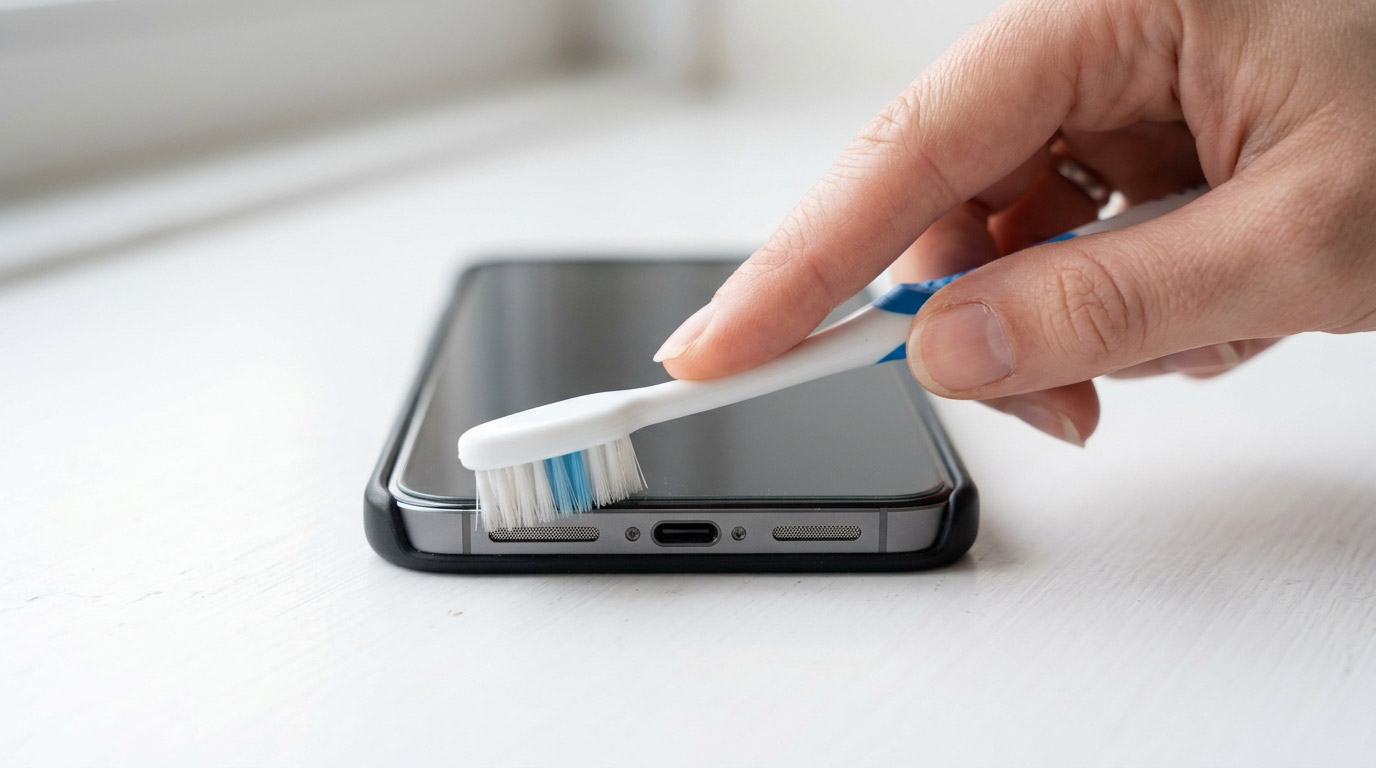
Safe cleaning method: Use a new, dry, soft-bristled toothbrush. Brush across the microphone grill gently in one direction. Follow with a very short burst of compressed air from a few inches away don’t blast from close range.
Do not use pins, needles, or anything metal. Do not use liquid. Do not blow into the mic with your mouth the moisture makes debris stick worse.
After cleaning, test the bottom microphone with a voice recording. Many customers who come in certain their microphone is broken leave after a debris cleaning resolves it entirely.
Check App Microphone Permissions
A specific app reporting no microphone could be a permissions issue rather than hardware failure.
On iPhone: Settings → Privacy & Security → Microphone
Every app that has requested microphone access appears here with a toggle. If an app like WhatsApp, Zoom, Instagram, or your phone’s camera is toggled off, it can’t access the microphone. Toggle it on and test.
On Android / Samsung: Settings → Apps → [App Name] → Permissions → Microphone → Allow
Also check: Settings → Privacy → Permission Manager → Microphone for a full overview of which apps have access.
Remove the Case and Any Accessories
Some phone cases particularly those with thick frames or tight-fitting bumpers partially cover the microphone grill opening. This is especially common with bottom microphones, where the case opening doesn’t align perfectly with the mic position.
Remove the case completely and test the microphone again. If sound quality immediately improves, the case was the issue use a case with a properly aligned cutout or a thinner case.
Also check: a screen protector that extends too far down the bottom of the screen can partially obstruct the bottom microphone on some iPhone models.
Test in Safe Mode (Android)
A third-party app can interfere with Android’s microphone system, causing it to appear non-functional in some or all apps.
To test: put your phone in Safe Mode (hold the power button until the power menu appears → long-press “Power Off” → confirm Safe Mode). In Safe Mode, no third-party apps run. Test your microphone in this state.
If the microphone works normally in Safe Mode: a third-party app is the cause. Restart normally and uninstall recently installed apps one at a time until the problem clears.
On iPhone, there’s no equivalent Safe Mode, but you can test by deleting recently installed apps individually and retesting.
Restart and Update
A software crash affecting the microphone driver is worth ruling out with a force restart before assuming hardware damage.
Force restart iPhone: Volume Up → Volume Down → hold Side button until Apple logo Force restart Samsung: Hold Power + Volume Down for 10 seconds
After restarting, also check for software updates: Settings → General → Software Update (iPhone) or Settings → Software Update (Samsung)
iOS 26 had documented microphone behavior changes that affected some third-party calling apps subsequent patch updates addressed these. Installing the latest version often resolves microphone issues that appeared after an iOS update.
Bluetooth Interference
If your microphone problem manifests specifically on calls people can’t hear you check whether your phone is connected to a Bluetooth device (earbuds, car audio, speaker). When connected to Bluetooth, audio routing (including the microphone) can switch to the Bluetooth device’s microphone, which may have its own issues.
Go to Settings → Bluetooth → Disconnect all devices. Make a test call using only the phone’s microphone directly. If calls work normally without Bluetooth, the Bluetooth device’s microphone is the issue, not the phone.
Moisture and Water Exposure
If your phone was recently exposed to water rain, sweat, bathroom steam, a brief submersion moisture in the microphone can cause muffled or absent audio. The microphone membrane can be temporarily distorted by water, or moisture in the grill can physically block sound waves from reaching the membrane.
Fix: Place the phone in a dry environment with the microphone grill facing down for at least one to two hours. Do not use heat (hair dryer) or put it in rice. Let it dry naturally.
If audio quality doesn’t restore after two to three hours of drying: moisture may have reached the microphone component itself. This requires professional assessment.
When It’s Hardware: Physical Microphone Damage
If all of the above hasn’t resolved the issue, the microphone component itself may be physically damaged.
Signs of hardware failure:
- Sound is completely absent (not just muffled) in voice recordings
- Problem started immediately after a drop or impact
- Cleaning the grill didn’t improve sound quality
- Specific mic works in Safe Mode but not in any normal app (unusual usually indicates software, but rules out some hardware causes)
Physical microphone replacement involves opening the phone and replacing the specific mic component or the flex cable it’s attached to. On iPhone, the bottom microphone is typically part of the charging port assembly so microphone replacement and charging port replacement often happen together.
At Stop to Fix, microphone replacement is completed same-day on most iPhone and Samsung models. We test all microphone positions before returning the device.
How Much Does Microphone Repair Cost?
| Device | Estimated Microphone Repair Cost |
|---|---|
| iPhone 13 / 14 / 15 (bottom mic) | $60 – $110 |
| iPhone 15 Pro / Pro Max | $80 – $130 |
| Samsung Galaxy S22 / S23 / S24 | $70 – $120 |
| Google Pixel 8 / 9 / 10 | $65 – $115 |
| Other Android mid-range | $45 – $90 |
Note: Bottom microphone replacement on iPhone often includes the charging port assembly get a clear quote from your shop on exactly what’s being replaced.
Stop to Fix Microphone Repair in San Antonio
📍 Bandera Road: 11851 Bandera Rd., Suite 104, San Antonio, TX 78023
📍 Pleasanton: 1320 W Oaklawn Suite D, Pleasanton, TX 78064
📞 Bandera: (210) 325-9913 | Pleasanton: (210) 371-8328
🌐 stoptofix.com/get-instant-estimate