



Blog
How to Free Up Space Without Losing Anything Important

Your phone says storage is full. Apps won’t update. Photos won’t save. The camera refuses to record video. It might even be running noticeably slower than it was six months ago.
Storage problems sneak up on everyone and the fixes are almost always faster and less painful than people expect. Here’s exactly how to free up significant space without losing anything you actually care about, on both iPhone and Android.
First: Understand What’s Actually Using Your Space
Before deleting anything, look at where your storage is going.
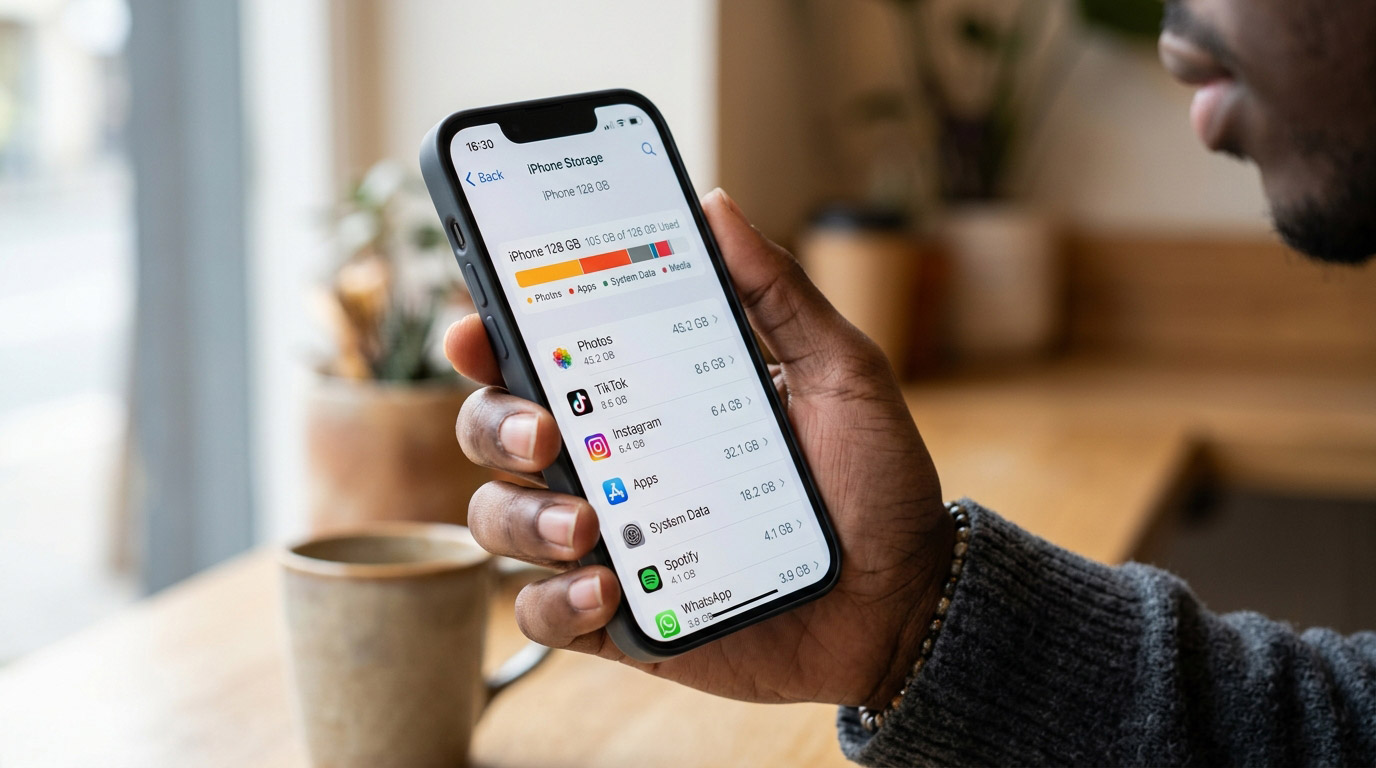
On iPhone: Settings → General → iPhone Storage
Wait a few seconds for the bar to populate. You’ll see a color-coded breakdown Photos, Apps, iOS, Messages, Other and a list of apps sorted by size below it.
On Samsung Galaxy: Settings → Battery and Device Care → Storage
On Google Pixel / Android: Settings → Storage
Understanding the breakdown tells you where to focus. The most common culprits are: Photos & Videos (often the largest), App data and caches (frequently larger than the app itself), and Messages (text threads accumulate more than people realize).
The Fastest Wins: Clear These First
1. Delete or Offload Unused Apps
Most people have apps they haven’t opened in months. Each one takes space and its accumulated data often takes more space than the app itself.
On iPhone: In Settings → General → iPhone Storage, scroll through the app list. Apps you haven’t used recently are flagged. Tap any app and choose:
- Offload App: Removes the app but keeps its data. Reinstalling restores everything exactly as it was. This is the safer choice for apps you might use again.
- Delete App: Removes the app and all its data permanently.
On Android: Settings → Apps → select any app → Uninstall. For apps you want to keep but rarely use, try Clear Cache first this removes temporary files without deleting your data.
2. Clear App Caches (Android / Samsung)
Android apps accumulate cache files temporary data stored for faster loading that often grows unchecked. Unlike iPhone (which manages cache automatically), Android lets you clear cache manually.
Settings → Apps → [App Name] → Storage → Clear Cache
Social media apps (Instagram, TikTok, Facebook, Snapchat) and streaming apps (YouTube, Spotify, Netflix) are the biggest cache accumulators. Clearing them can recover hundreds of megabytes to several gigabytes immediately.
On iPhone, you can’t clear individual app caches directly, but offloading and reinstalling an app (Settings → General → iPhone Storage → Offload App) clears the cache while preserving your data.
3. Delete Duplicate and Burst Photos
Burst mode and similar-looking duplicates accumulate silently. Most people have hundreds or thousands they’ve never reviewed.
On iPhone: The Photos app automatically identifies duplicates. Go to Photos → Albums → scroll down to Utilities → Duplicates. Merge or delete them here.
For burst photos: Photos → Albums → Burst. Tap a burst → Select. Choose your keeper → Done → Keep Only This Photo.
On Android / Samsung Gallery: Samsung’s Gallery app has a built-in duplicate finder under More → Settings → Scan for duplicates. Google Photos users can find duplicates under Manage Storage.
The Biggest Win: Move Photos and Videos to the Cloud
Photos and videos are almost always the largest category of storage use and they don’t need to live on your device.
iCloud Photos (iPhone): Settings → [Your Name] → iCloud → Photos → Sync This iPhone → On
After enabling, go to Settings → [Your Name] → iCloud → Photos → toggle Optimize iPhone Storage. This keeps full-resolution photos in iCloud and stores smaller “optimized” versions on your device recovering enormous amounts of storage automatically over the next few days.
Important: this only works if you have enough iCloud storage. Free accounts get 5GB usually not enough. iCloud+ starts at $0.99/month for 50GB. For most people, 50GB or 200GB ($2.99/month) is sufficient.
Google Photos (Android and iPhone): Google Photos offers 15GB of free storage and backs up all photos automatically. Enable backup: Google Photos → Profile icon → Photos Settings → Backup → On. After confirming backup, tap Free Up Space this removes already-backed-up photos from your device.
Messages: More Storage Than You’d Expect
Text threads especially ones with lots of photos and videos shared over years can consume gigabytes of storage.
On iPhone: Settings → General → iPhone Storage → Messages → Review Large Attachments
Here you’ll see photos, videos, and files shared in Messages, sorted by size. Delete what you don’t need.
Also: Settings → Messages → Message History → Keep Messages → 1 Year (instead of Forever). This auto-deletes old messages on a rolling basis.
On Android / Samsung Messages: Open Messages → More options (three dots) → Settings → Storage management → Delete old messages. Enable the auto-delete option for messages beyond a certain count.
Streaming Downloads You’ve Forgotten About
Spotify, Apple Music, Netflix, Disney+, YouTube every downloaded song, album, playlist, podcast, or show takes real storage. If you downloaded content for offline use during a trip and never cleared it:
Spotify: Settings (gear icon) → Storage → Delete cache, and separately check Downloaded content under Premium settings.
Apple Music: Settings → Music → Downloaded Music Review and delete individual albums or artists.
Netflix/YouTube: Open the app → Downloads section → Delete any content you’ve already watched or no longer need.
This step alone commonly recovers 2 to 5 gigabytes for regular streaming users.
The “Other” and “System” Category on iPhone
iPhone users often notice a large “Other” or “System” category in their storage breakdown that seems impossible to reduce. This is a combination of:
- System files and iOS itself
- Safari cache and website data
- Mail cache and attachments
- Siri offline resources
- Various system logs and temp files
To reduce it:
Clear Safari cache: Settings → Safari → Clear History and Website Data. This can recover several hundred megabytes to over a gigabyte.
Clear Mail attachments: Settings → General → iPhone Storage → Mail → Delete App (then reinstall from App Store). Mail stores email attachments locally even after you’ve read them deleting and reinstalling the app clears these without affecting your email account.
Reduce Siri offline resources: Settings → Siri & Search → Siri Voice → Language settings choosing a less data-intensive voice option reduces offline storage.
When Storage Keeps Filling Up Immediately
If you free up storage and it fills back up within days, something specific is consuming space abnormally:
- A messaging app (WhatsApp, Telegram) may be auto-saving every received photo and video to your gallery. Check each app’s media auto-save settings.
- A backup or sync app may be storing redundant local copies of files.
- An app may have a bug causing runaway cache growth check Settings → General → iPhone Storage and watch which app’s size is growing.
When It Might Be Time to Upgrade Storage
If your phone has 64GB or less and you’re a regular photo taker, heavy app user, or frequent downloader storage will be a recurring problem regardless of how diligently you manage it. Modern iPhones and Android flagships start at 128GB for good reason.
Before buying a new phone specifically for more storage: cloud optimization (iCloud Photos / Google Photos) can effectively give you unlimited photo storage for $1 to $3 per month often resolving the storage problem without a hardware upgrade.
Stop to Fix San Antonio
We help with software and storage issues at both our San Antonio locations. If your phone is running slow, apps are crashing, or you’re dealing with something beyond a storage cleanup, come in for a free diagnostic.
📍 Bandera Road: 11851 Bandera Rd., Suite 104, San Antonio, TX 78023
📍 Pleasanton: 1320 W Oaklawn Suite D, Pleasanton, TX 78064
📞 Bandera: (210) 325-9913 | Pleasanton: (210) 371-8328
🌐 stoptofix.com/get-instant-estimate