



Blog
iPhone Face ID Not Working?

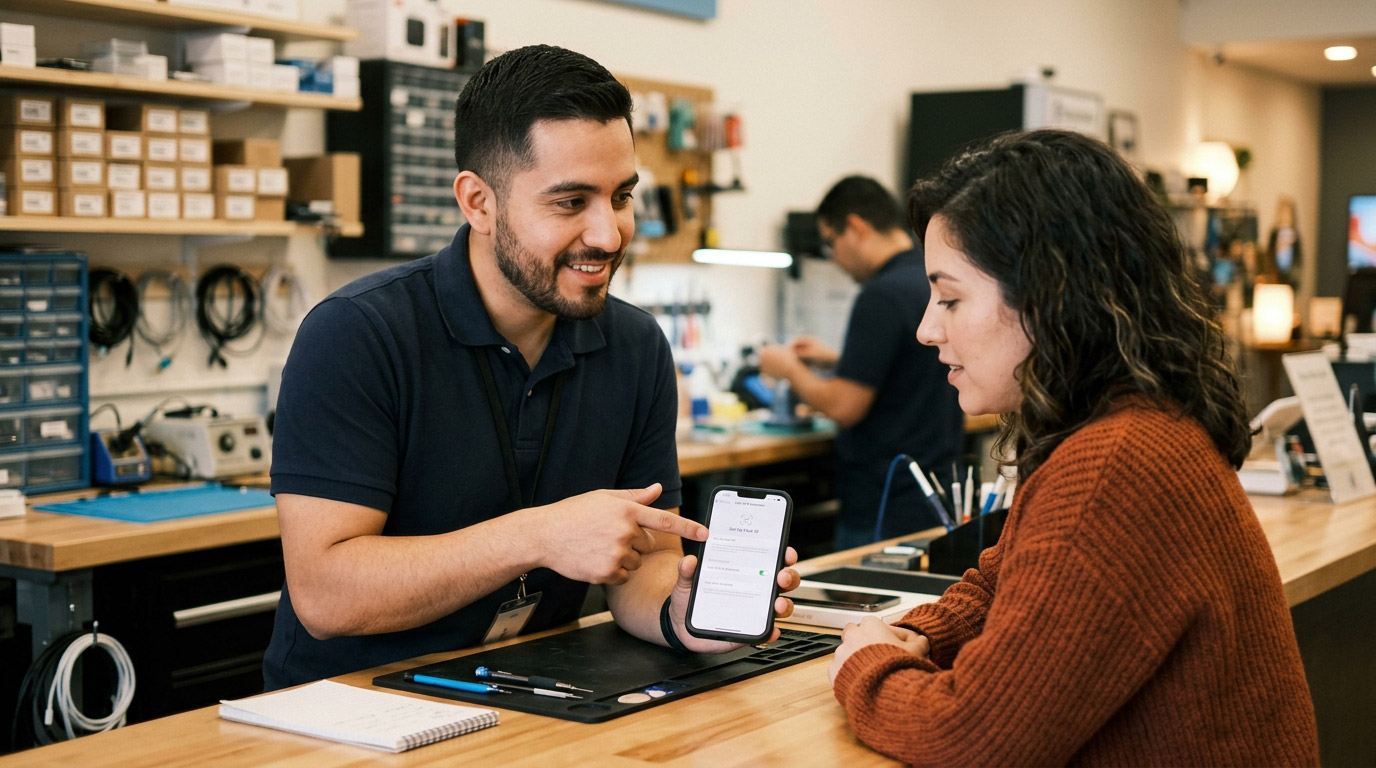
Face ID stopped working on your iPhone. Maybe it says “Face ID is not available.” Maybe it doesn’t respond at all when you lift the phone. Maybe it worked fine yesterday and now it won’t recognize you no matter how many times you try.
In 2026, the overwhelming majority of Face ID failures are software or environment-related and fixable in minutes without setting foot in an Apple Store. This guide covers every fix in order, from the simplest to the most advanced, including the one issue that trips up almost everyone and almost no troubleshooting article addresses correctly.
Before Anything Else: Clean the TrueDepth Sensor
The most common and most overlooked cause of Face ID failure is a dirty sensor.
The TrueDepth camera system on the front of your iPhone projects 30,000 invisible infrared dots to map your face. If the sensor area is covered with oils, dust, a smudge from your thumb, or even a screen protector that’s partially lifted over the top of the screen the dot pattern can’t project or read correctly.
Use a clean, dry microfiber cloth and gently wipe the top of your iPhone’s screen where the camera and sensor cluster sit. On iPhone 13 and later, this is the area around and above the Dynamic Island or the small camera/sensor strip at the top. Don’t use wet wipes, alcohol, or rough materials.
After cleaning, try Face ID again before doing anything else.
Fix 1: Check Your Face ID Feature Toggles
After every iOS update — and iOS 26 has been particularly prone to this Face ID feature switches can get silently reset.
Go to Settings → Face ID & Passcode → Enter your passcode
Check that the switches for all of the following are turned on (green):
- iPhone Unlock
- iTunes & App Store
- Apple Pay
- Password AutoFill
- Other Apps
If any of these are off, tap to enable them. This resolves a specific category of failure where Face ID is technically working but has been disabled for specific functions.
Fix 2: The Stolen Device Protection Trap (The Most Missed Fix)
This is the issue that trips up the most users in 2026 and almost no troubleshooting article addresses it properly.
Stolen Device Protection, introduced in iOS 17.3 and enhanced through iOS 26, adds a biometric-only authentication layer when your iPhone is away from familiar locations like home or work. In some scenarios particularly after an iOS update or a visit to an unfamiliar location — the feature can create a loop where Face ID is required to change Face ID settings, but Face ID isn’t working.
If you try to go to Settings → Face ID & Passcode → Reset Face ID and the option appears greyed out or does nothing: Stolen Device Protection is likely blocking the change because your phone doesn’t recognize your current location as a familiar one.
The fix: Go to Settings → Face ID & Passcode → Stolen Device Protection. If you’re away from a familiar location, you may need to wait up to one hour before changes are allowed or return to a location your iPhone recognizes as home or work, wait a few minutes for location to register, and then try resetting Face ID again.
Fix 3: Force Restart
A software crash affecting the TrueDepth system can be cleared with a force restart.
iPhone 12 and later (including iPhone 17):
Quickly press and release Volume Up
Quickly press and release Volume Down
Press and hold the Side button until the Apple logo appears
After the phone restarts, go to Settings → Face ID & Passcode and test Face ID before trying to reset it.
Fix 4: Update iOS
Whether you are using an iPhone 11 or the latest iPhone 17, software glitches like those following the iOS 26 update can sometimes interrupt your facial recognition.
Apple has released multiple iOS 26 patch updates specifically addressing Face ID behavior. If you haven’t updated since the initial iOS 26 release:
Settings → General → Software Update → Download and Install
After updating, restart the phone before testing Face ID.
Fix 5: Reset Face ID and Re-enroll
If Face ID is available in Settings but simply not recognizing you reliably:
Settings → Face ID & Passcode → Reset Face ID
After resetting, set it up fresh. When re-enrolling:
Choose a well-lit environment natural light is best
Hold the phone at your normal viewing distance (10 to 20 inches from your face)
Move slowly through the circular scan don’t rush the rotation
Do the second scan at a slightly different angle than your first
Re-enrollment fixes most persistent recognition failures Reset Face ID, scan slowly in good lighting.
If you wear glasses sometimes and not others, set up Face ID twice once with glasses, once without.
Fix 6: Reset All Settings
If Face ID is completely missing from Settings the option doesn’t appear at all or if the above fixes haven’t resolved intermittent failures, a settings reset can clear corrupted preference files affecting the TrueDepth system.
Settings → General → Transfer or Reset iPhone → Reset → Reset All Settings
This resets display settings, network settings, Face ID configuration, and other system preferences without deleting your data. You’ll need to re-enter Wi-Fi passwords and reconfigure some preferences afterward.
When “Face ID Is Not Available” Means Hardware
“Face ID is not available” as a persistent error message not just after setup, but in the settings menu itself is a hardware issue. Software fixes won’t help.
Signs the problem is hardware:
- “Face ID is not available” appears persistently even after software fixes and updates
- Face ID doesn’t appear in Settings at all (not just greyed out completely absent)
- The problem started immediately after a drop, particularly if the phone hit on its top edge near the TrueDepth sensor
- A previous screen repair disturbed the front camera module or TrueDepth sensor assembly
The parts pairing reality: The TrueDepth sensor assembly is cryptographically paired to your iPhone’s logic board replacing it with a part from another phone permanently disables Face ID. Even disconnecting and reconnecting the flex cable without proper tools can affect this pairing.
This is why Face ID hardware repair is one of the most technically demanding iPhone repairs available. The sensor can’t simply be replaced if it’s physically damaged, Face ID is permanently disabled on that device. The practical options at that point are using the phone with passcode only, or a full device replacement through Apple.
Face ID After a Screen Repair: What to Know
Third-party screen replacement that disturbed or damaged the TrueDepth sensor flex cable is one of the most common causes of Face ID failure following repair.
If your Face ID stopped working after a screen replacement:
Return to the shop that performed the repair immediately the flex cable may have been disturbed during the repair and needs to be reseated
A skilled technician can reconnect the TrueDepth cable without triggering the permanent pairing damage but only if the sensor itself wasn’t damaged or moved between devices
At Stop to Fix, we’re transparent about how screen replacement interacts with Face ID before we begin any repair. We handle the TrueDepth flex cable with specific care to avoid disrupting the sensor’s calibration, and we test Face ID function before returning any device.
Stop to Fix — iPhone Face ID Diagnosis in San Antonio
If software fixes haven’t resolved your Face ID issue, bring it in for a free diagnostic. We’ll tell you within minutes whether the cause is software, a sensor cable issue from a previous repair, or a hardware failure — and what your options are.
📍 Bandera Road: 11851 Bandera Rd., Suite 104, San Antonio, TX 78023
📍 Pleasanton: 1320 W Oaklawn Suite D, Pleasanton, TX 78064
📞 Bandera: (210) 325-9913 | Pleasanton: (210) 371-8328
🌐 stoptofix.com/get-instant-estimate